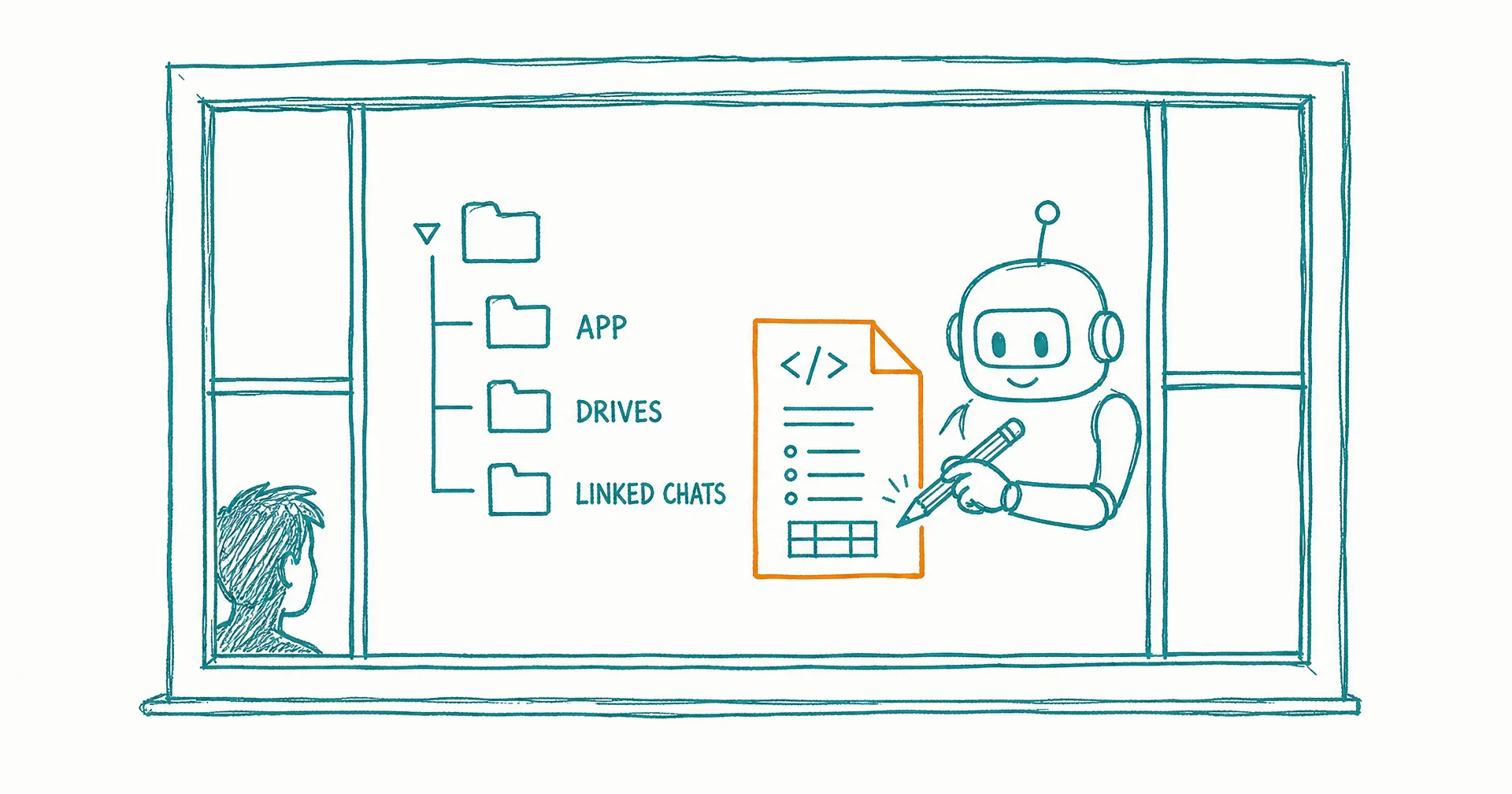
Ever wondered what your AI is actually doing behind the scenes? Agent Computer gives you a window into your agent’s workspace - browse folders, view files, and see exactly what gets created during your conversations.
Think of it as peeking over your AI’s shoulder while it works.
- Agent Computer launched January 8, 2026: a window into your agent’s workspace, for all CellCog users.
- Browse folders, view files, and see exactly what gets created during your conversations.
- Real-time updates: files appear as your agent creates them, with previews for code, images, and documents.
- Three areas: app (the chat’s private workspace), drives (your personal files), and linked chats (connected workspaces).
- View-only access keeps everything safe while you explore.
- The payoff compounds: understanding how agents organize work teaches you to guide them better.
§ 01When to Use It
- Important projects - understand your agent’s approach to optimize future conversations and get better results.
- Troubleshooting - see exactly what files your agent created or changed during your chat.
- Learning - discover how agents organize projects and structure their work. Over time, you’ll learn to guide them more effectively.
- Staying in sync - watch your agent’s progress in real time and provide better feedback as it works.
§ 02What You’ll See
- app - your chat’s private workspace
- drives - your personal files, available to all chats
- linked chats - workspaces from other conversations you’ve connected
§ 03How It Works
Real-time updates mean files appear as your agent creates them. Previews cover code, images, documents, and more. Browsing is view-only, so exploring is always safe - and cross-chat connections let you see linked workspaces too.
The deeper value is trust through transparency. An agent that works in a black box earns confidence slowly; one whose workspace you can open at any moment earns it fast. It’s the same principle that later grew into audit trails for AI employees: the work should be inspectable, always.
Agent Computer is available now for all CellCog users - click the Agent Computer button in any chat header.
§ 04The Honest Caveats
View-only means view-only: redirecting the work still happens in the conversation, not the file browser. A workspace mid-task shows work in progress - half-built files are normal, not broken. And watching everything the agent does is optional by design; the window is there when you want it, ignorable when you don’t.
Q1Why would I want to see the agent's workspace?
Four reasons: understand its approach on important projects, troubleshoot by seeing exactly what was created or changed, learn how agents structure work so you can guide them better, and stay in sync by watching progress in real time.
Q2What's in the three folders?
app is the current chat’s private workspace - everything this conversation creates. drives holds your personal files, available across all chats. linked chats shows workspaces from other conversations you’ve connected.
Q3Can I edit files from Agent Computer?
No - it’s deliberately view-only. You direct changes through the conversation; the window is for seeing, not touching.
Q4Does it update live?
Yes - files appear as the agent creates them, so you can watch a project take shape and give feedback mid-flight.
Q5What file types can I preview?
Code, images, documents, and more - the common types agents produce render right in the interface.