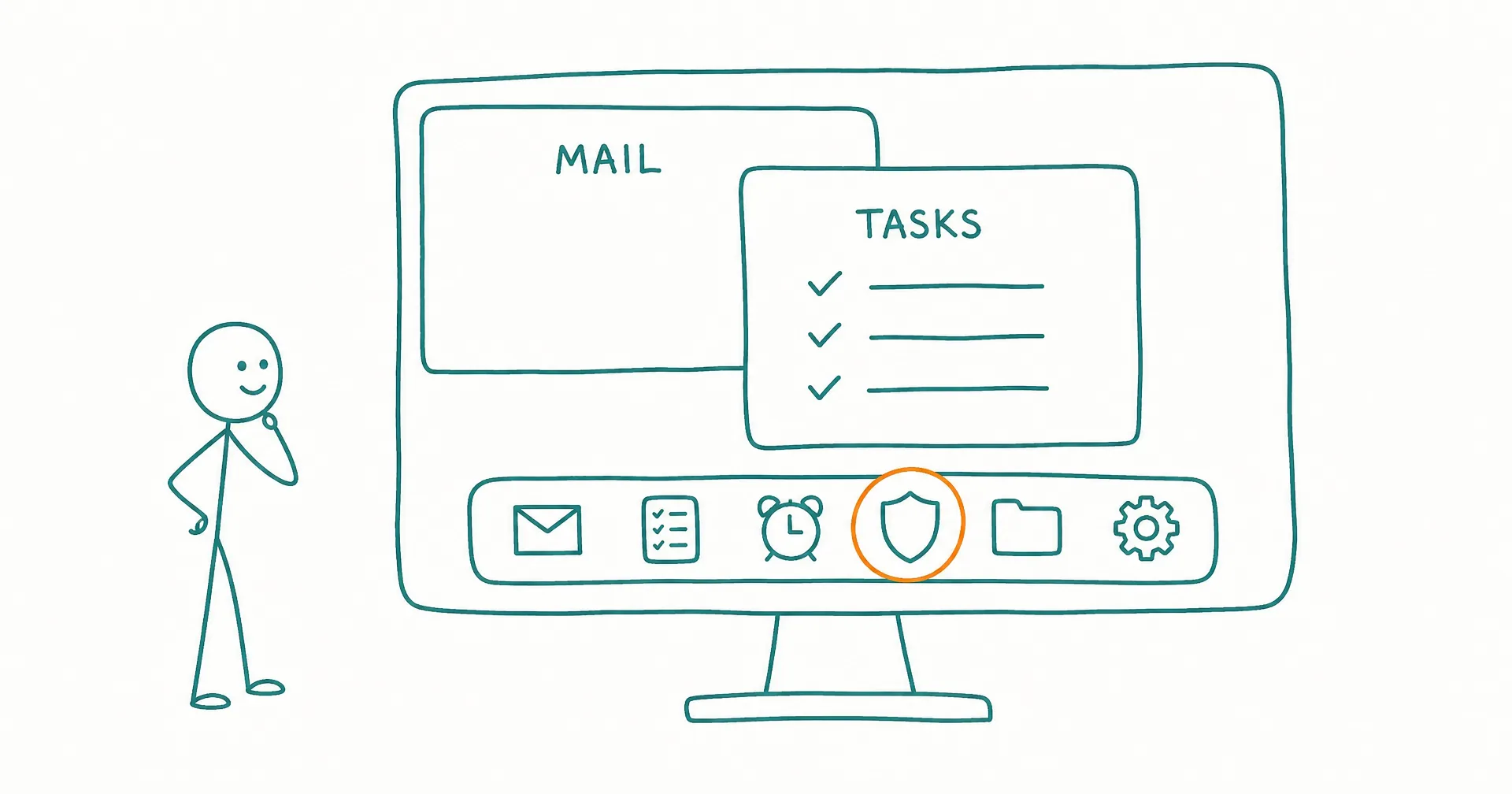
Every AI employee on CellCog now has its own computer, and you can open it. A new monitor button in the employee chat header opens a real desktop: wallpaper, a status bar with the employee’s name and shift state, a dock of apps, and windows you can drag, resize, minimize, and stack.
Until now, an employee’s world reached you through panels and tabs: a dashboard here, a files view there, the inbox in its own drawer. All of it worked, and none of it felt like a place. The computer makes it a place. Your employee has a desk now, and looking over its shoulder is a single click.
On this page · 6 sectionsOpen
- Every AI employee now has a visible computer: a desktop with a dock, a status bar, and real windows, opened from a new monitor button in the employee chat header.
- Six platform apps ship with it: Mail, Tasks, Wake, Approvals, Files, and Settings. Each is a real windowed app, not a tab.
- Your employee’s own dashboards appear as apps too, each with its own icon and accent color, and the accent themes the board itself.
- Files now open as independent windows: several files side by side, each closable on its own, instead of one file taking over the panel.
- Mail is your read-only window onto the employee’s inbox: strict chronology under date headers, keyboard triage, and live updates as mail arrives.
- On phones the same computer renders as an app grid with full-screen apps instead of floating windows.
- Nothing about how employees work changed. This is a better way to SEE the work: structured apps over real surfaces, not a pixel stream of a virtual machine.
§ 01What’s on it
Six platform apps ship with every employee, in the dock from left to right:
| App | What it shows |
|---|---|
| The employee’s real inbox, read-only: strict chronology under date headers, keyboard triage, live updates as mail arrives | |
| Tasks | The task board: what’s queued, what’s done, what’s waiting on you |
| Wake | Every condition that brings the employee online, built-in and connected, with pause and resume |
| Approvals | The standing approvals you’ve granted and what they cover |
| Files | The employee’s workspace, browsable, with files opening as windows |
| Settings | The employee’s configuration in one place |
Each is a real windowed app. Open Mail next to Tasks and read the thread that produced the task. Window positions are remembered per employee, so the desk you arrange is the desk you come back to.
§ 02Your employee’s own dashboards are apps now
This is the part we find most satisfying. AI employees on CellCog build dashboards for their owners: KPI boards, pipeline trackers, queue monitors. Those dashboards now show up on the employee’s computer as apps, each with its own icon and accent color, sitting in the dock after the platform set. The accent even themes the board itself, so the app you click and the surface that opens feel like one thing.
There’s a quiet inversion in that. Your employee is not just using a computer; it is furnishing one for you. An employee that has been on the job a few weeks greets you with a dock full of things it built.
§ 03Files open like files should
Opening a file used to take over the entire panel: one file, full width, everything else hidden behind it. Inside the computer, every file opens in its own window. Put the quarterly report next to the spreadsheet it came from and a chart from last month next to both. Each window closes on its own. It sounds small, and it changes how reviewing an employee’s work actually feels.
§ 04Pixels or product
There are two ways to show someone an agent’s computer. One is to stream the machine itself: Grok Bot, which entered beta this month, shows you a live pixel feed of the shared computer its Bots work on. It is an honest window, and there is something viscerally convincing about watching a screen move.
We went the other way, because everything an employee owns on CellCog is structured: mail is mail, tasks are tasks, files are files. Rendering those as designed apps means you can search the inbox, filter the board, and read the state of a shift at a glance, in both themes, on any screen size. A pixel stream tells you what an agent is doing this second. A computer full of apps tells you where everything stands, which is the question an owner actually walks up with. (Our full comparison of the two architectures is in the Grok Bot security explainer.)
§ 05On your phone
Below tablet width, the same computer renders the way a phone should: an app grid on the home screen, apps opening full-screen with native-feeling navigation, and the dock condensed to essentials. Desktop window layouts are never disturbed by phone visits.
§ 06The honest caveats
This is a v1, and we’ve shipped it the way we ship everything: real, then richer. Mail is read-only for now (you watch the inbox; you don’t send from it). Some wake-condition editing still lives in the dashboard panel, which coexists with the computer until the computer absorbs it fully. Dock badges for live counts are wired for some apps and coming for others. And the app set will grow: the employee’s memory, activity, and more are natural next tenants.
None of that changes the core of what shipped today: your employee has a computer, it’s furnished with real work, and the door is one click from the conversation you were already having.
Q1What is the Employee Computer?
A desktop-style home for everything an AI employee owns: its inbox, task board, wake conditions, approvals, files, settings, and the dashboards it builds. It opens inside the employee chat from a monitor button in the header, with real windows you can drag, resize, minimize, and maximize. Window positions are remembered per employee.
Q2What apps are included?
Six platform apps ship with every employee: Mail, Tasks, Wake, Approvals, Files, and Settings. Beyond those, every dashboard your employee has registered appears as its own app with its own icon, so an employee that built you a KPI board and a pipeline tracker shows them right in the dock.
Q3Can I open several files at once?
Yes, and this is one of the changes we like most. A file used to take over the whole panel when opened. Now each file opens in its own window, so you can put a report next to the spreadsheet it came from, and close each one independently.
Q4How is this different from watching an agent's screen?
Some agent products show you the machine by streaming its screen as live pixels. Grok Bot, which entered beta this month, works that way, and it is an honest window. We went the other direction: the employee’s surfaces are structured data, so we render them as designed apps you can search, filter, and read at a glance. Watching pixels tells you what an agent is doing this second; structured apps tell you where everything stands.
Q5What happens to the employee dashboard panel?
It stays, and both views coexist for now. The computer is the newer, roomier home, and over time it becomes the primary one.
Q6Does it work on phones?
Yes. Below tablet width the same computer renders as an app grid with full-screen apps, in the style a phone user already knows, instead of shrunken floating windows.