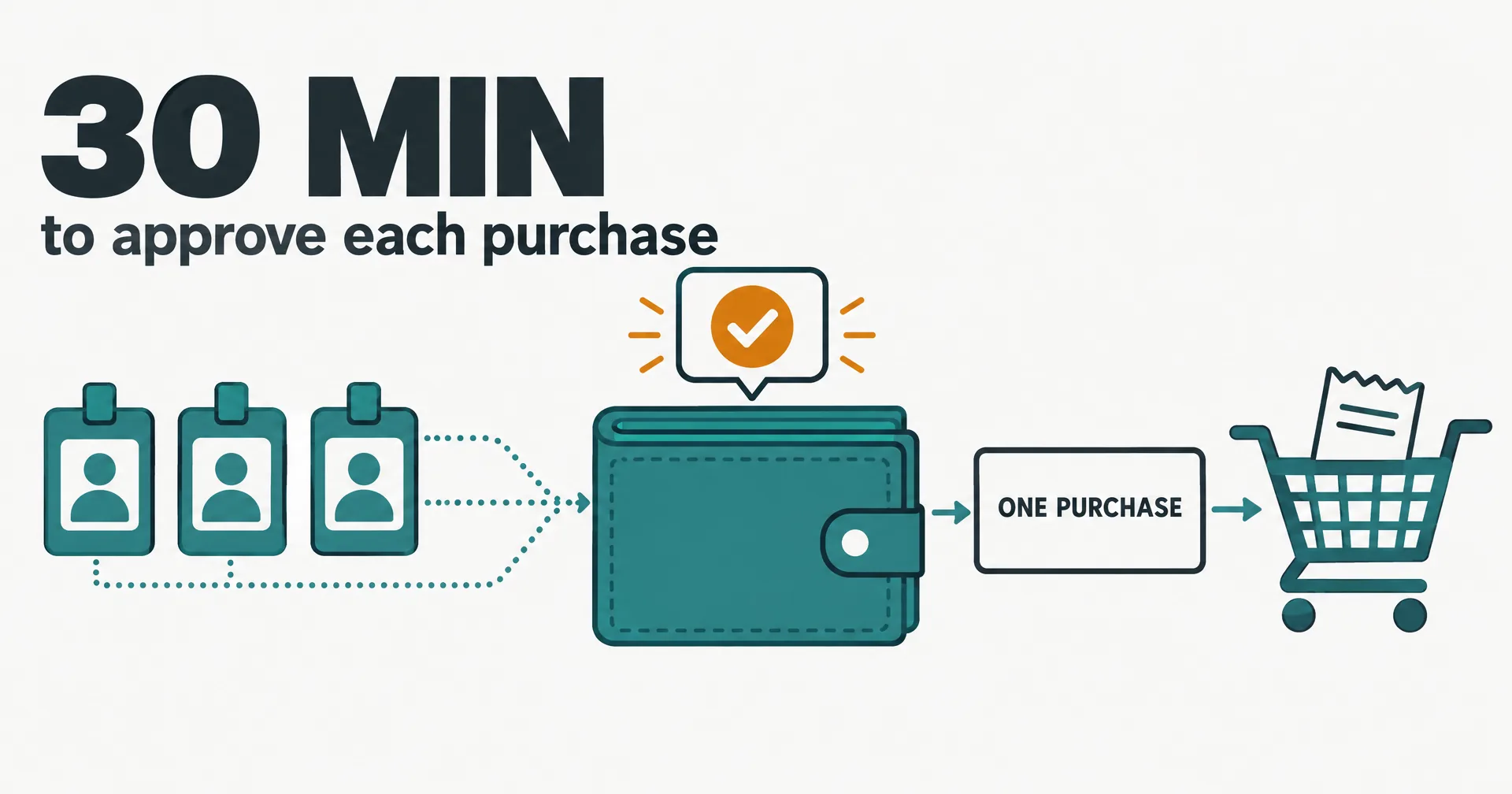
Your AI employees can now buy things for you. Spend lets an employee put an order together, ask you to approve the exact total, and pay from your own Link wallet once you say yes. You approve every purchase in Link, and the card it pays with works once, only for that purchase.
The errands are ordinary: two copies of a book for the reading group, a train ticket, a conference pass, a part from a supplier. Until now an employee could research and prepare all of it and then had to stop at the checkout. Now it can finish the job.
On this page · 6 sectionsOpen
 Spend is live: a CellCog AI employee can buy things for you, paid from your own Link wallet, Stripe’s wallet for paying online. It is off for every employee until you turn it on.
 You approve every purchase yourself, in Link, at the exact total and merchant your employee requested. CellCog sends no extra notification; the approval lives in Link.
 On approval, Link issues a one-time card that works once, only at that merchant, for that amount. Your real card stays in Link and never reaches CellCog.
 Each request waits 30 minutes for your answer. If the checkout total changes, your employee cancels and asks again with the new total.
 Link connects once per organization and can serve every employee you own there. Each employee gets its own switch, optional caps and purchase history, all in the Spend app.
 Not yet: hotels that hold a deposit at check-in, subscriptions, and currencies other than US dollars. Link’s agent wallet is for people in the US and Canada.
§ 01How a purchase works
| Step | Who | What happens |
|---|---|---|
| 1. Ask | You | In chat, by email or on a task: what to buy. Your employee buys only what you asked for or what is plainly part of work you gave it |
| 2. Prepare | Your employee | In its own browser it fills the cart, picks shipping and reads the final total, tax and shipping included |
| 3. Request | Your employee | It asks Link to approve that exact total at that merchant, with the items and a short note on why |
| 4. Approve | You, in Link | Link notifies you in its own app. You have 30 minutes to approve or decline |
| 5. Pay | Your employee | Link issues a one-time card for that amount and merchant; your employee completes the checkout and records the confirmation |
| 6. See it | You | Every purchase and its status shows in the Spend app and as a line in the employee’s chat |
If the total changes before payment, the approved card no longer fits, so your employee cancels and asks again with the new total. If you decline, it drops the purchase and does not ask again unless you tell it to.
§ 02Built for an organization of employees
Spend was built for a team, not one assistant. You connect Link once per organization, and every employee you own there can use it, each with its own switch, its own optional caps and its own purchase history. Your research assistant can buy the report it needs while your operations manager has purchases switched off entirely.
| Control | Default | Why |
|---|---|---|
| Make purchases | Off | Nothing is bought until you turn it on for that employee |
| Per purchase cap | No cap | A flight or a conference pass can cost more than any default we could pick |
| Monthly cap | No cap | Add one if you want a ceiling; your approval in Link stays the real check |
| Link connection | One per organization | A wallet connected in one organization never pays for another organization’s employees |
Caps are optional on purpose. Your approval in Link decides every purchase; caps are an extra limit you add only if you want one.
§ 03How other agents pay
Agents that buy things are arriving fast, and they do not all ask the same way. From each company’s own pages, read on October 4, 2026:
| Agent | How it pays | Approval |
|---|---|---|
| CellCog AI employees | One-time card from your Link wallet | You approve every purchase in Link, at the exact total |
| Meta Muse | Link one-time card (recommended), or a card saved on a merchant account | Muse “will always ask for your approval prior to completing a purchase” |
| Grok Bot | A single-use card from Link | “You approve every spend request”, US users |
| OpenAI dots | A card you saved on the merchant’s website | Required, and “may be given in advance when it specifically covers the purchase” |
Link’s own documentation describes the same rail Spend uses: “Your agent creates a spend request, the customer approves it, and Link returns a one-time-use payment credential for that purchase” (Stripe docs). Our difference is the organization around it: one wallet, many employees, each switched on separately, all in one app.
§ 04The honest caveats
- Where it works. Spend fills the card where the card form sits on the merchant’s own site or a known hosted checkout. Some checkouts still need you for a bank check or a captcha; your employee fills everything else and sends you a link to finish that step.
- What it cannot buy yet. Hotels that charge at check-in or hold an incidentals deposit, subscriptions and renewals, and purchases in currencies other than US dollars.
- Where Link’s agent wallet runs. Per Stripe, “Agent payments are available to US and Canadian consumers.”
- Screenshots. Your employee can see the one-time card in its checkout screenshots. That card works once; your real card never reaches CellCog.
- Who is buying. You are. It is your money and your wallet. Order and refund questions go to the merchant; card questions go to Link or your bank.
§ 05Getting started
- Open Spend under More in the left sidebar and connect Link.
- Open an employee’s Settings app and turn on purchases, with caps if you want them.
- Ask for something: “Order two copies of Working in Public for the reading group.”
The full setup and every status are in the Spend guide.
§ 06Sources
- CellCog, Spend guide.
- Stripe Docs, Enable agents to spend, read October 4, 2026.
- Meta Help Center, How Muse works with payments, read October 4, 2026.
- OpenAI Help Center, Dots privacy, security, and safety FAQs, read October 4, 2026.
- Grok Bot on X, August 28, 2026.
Q1How do I turn Spend on?
Open Spend under More in the left sidebar and connect Link once for your organization. Then open the employee’s Settings app and turn on purchases for that employee, with optional per-purchase and monthly caps.
Q2Can my employee buy something I did not approve?
No. Every purchase needs your approval in Link, at the exact total and merchant, and the one-time card works once, only for that amount and merchant.
Q3Can my employee see the card it pays with?
It can see the one-time card in checkout screenshots. That card works once, for this purchase only. Your real card never reaches CellCog.
Q4What can it not buy yet?
Hotels that charge or hold a deposit at check-in, subscriptions and renewals, and purchases in currencies other than US dollars. For those, your employee prepares everything and you pay yourself.
Q5What happens at a bank check or captcha?
Your employee fills in everything it can and sends you a link to its browser so you can finish that one step.
Q6Who do I contact about an order or refund?
The merchant. It is your purchase from your wallet, and CellCog is not a party to it. Card questions go to Link or your bank.