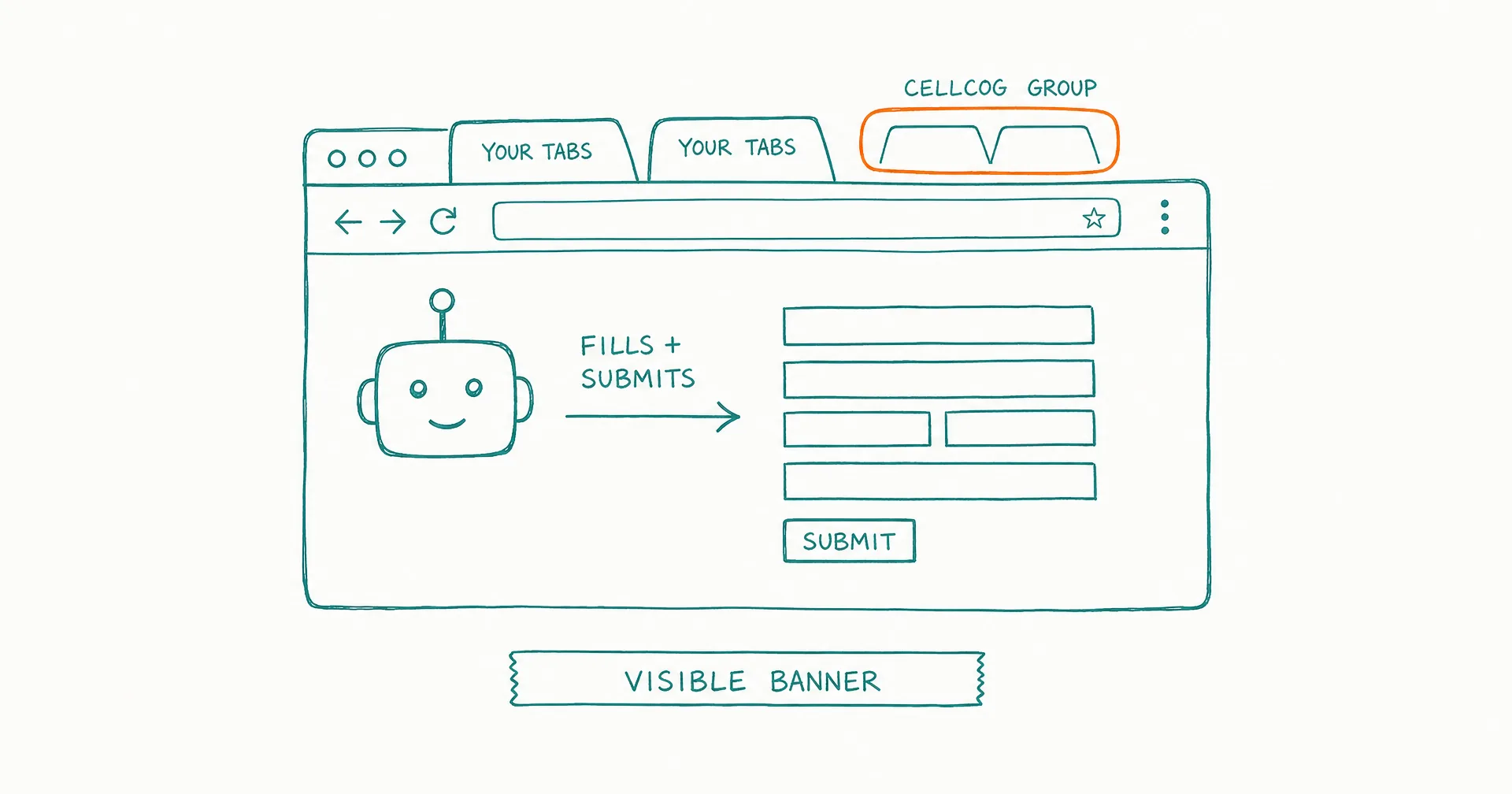
Today we’re launching CellCog Browse - the Chrome extension that lets your AI agent work in your real browser. Your logins. Your tabs. Your sessions.
“We’re pushing the boundaries of what a cloud-hosted agent can do on a real user’s machine - and the only way to do that responsibly is to make every action understandable before it runs. CellCog Browse classifies every command as safe, moderate, or dangerous, and you decide where auto-approval ends. We built it this way because we use CellCog for our own production work, with our own production credentials at stake.”
Nitish Garg, Founder and CEO
- CellCog Browse is a Chrome extension that lets your agent work in your real browser - your logins, your tabs, your sessions - launched May 15, 2026.
- It closes the copy-paste gap: the same agent that produces your research and assets can now log in, fill the form, upload the file, and submit.
- Setup is three steps: install the desktop app and extension, enable Browse in any chat, watch and approve.
- Every action is classified as safe, moderate, or dangerous before it runs, with a plain-language summary - you decide where auto-approval ends.
- Agent tabs live in a clearly marked CellCog tab group, separate from your own work.
- Chrome’s own yellow debugging banner stays visible the entire time an agent is connected - you always know when an AI has access.
§ 01The Gap It Closes
Until now, the work and the web were two separate worlds. You’d have your agent do the thinking - research, drafts, generated assets, application content - and then you’d manually move it across to a browser tab. Copy. Paste. Switch tabs. Upload the file. Submit the form. The agent did the hard part; you did the busywork.
CellCog Browse closes that loop. The same agent that generates your assets can now log into your accounts, fill the form, upload the file, and submit - inside the browser you already use, with the sessions you already have. One agent, end to end.
§ 02How It Works in Three Steps
- Install once. CellCog Desktop for macOS, Windows, or Linux, plus the Browse extension in your Chrome. They find each other automatically.
- Enable in any chat. Toggle Browse, pick a Chrome profile, you’re live. The agent creates tabs in a clearly marked CellCog tab group, separate from your own work.
- Watch and approve. Every command shows up in the chat with a plain-language summary the agent wrote for you. Approve what matters, let the rest auto-run based on your threshold.
The Browse my Chrome guide walks through setup, profiles, and the approval model step by step.
§ 03What Makes This Different
Your real sessions, not a sandbox. Other agent-browsers make you re-login everywhere. CellCog uses the Chrome you’ve already configured - which is exactly why the safety model matters so much.
Three levels of trust, classified automatically. Every action - terminal, file, browser - is classified as safe, moderate, or dangerous before it runs. You set the threshold where auto-approval stops. Not by domain, not by tool, but by what the action actually does. It’s the same approval rail that protects Cowork, so one mental model covers your machine and your browser.
Chrome’s own safety signal stays visible. The yellow “CellCog Browse started debugging this browser” banner stays up the entire time the agent is connected, so you always know when an AI has access - and one click on it revokes control.
For AI employees, Browse is a quiet superpower: a real business runs on plenty of surfaces that have no API - vendor portals, directory listings, admin consoles - and an employee with browser hands can work them the way a person would, with you in the loop exactly where you choose to be.
§ 04The Honest Caveats
Real-session access is powerful, which is why it’s deliberately loud: the banner can’t be hidden, agent tabs are visibly grouped, and actions above your threshold wait for you. Browser automation is also inherently slower than an API call - when a proper integration exists, the agent should use it, and Browse covers the long tail where none does. And your own judgment about which profile and which sites to expose remains the most important setting there is.
Q1Why does the agent need my real browser instead of a sandbox?
Because the busywork lives where your sessions live. Research, drafts, and assets are only half the job - the other half is logging in, filling the form, uploading the file, and submitting. A sandboxed browser makes you re-authenticate everywhere; Browse uses the Chrome you’ve already configured.
Q2What can the agent actually do in Chrome?
Navigate, read pages, fill and submit forms, manage its own tabs, and take screenshots to verify its work - all inside a clearly marked CellCog tab group, separate from your tabs.
Q3How does the approval model work?
Every action - terminal, file, or browser - is classified as safe, moderate, or dangerous before it runs, with a plain-language summary the agent writes for you. You set the threshold where auto-approval ends. It’s the same rail that protects Cowork, so one mental model covers both surfaces.
Q4How do I know when an agent has access?
Chrome shows its own yellow ‘CellCog Browse started debugging this browser’ banner the entire time the agent is connected. It can’t be hidden, and clicking Cancel on it revokes control instantly.
Q5Does it work with my Chrome profiles?
Yes - you pick the profile when you enable Browse in a chat, so work and personal contexts stay separate.
Q6Why does this matter for AI employees?
Plenty of real work has no API: directory listings, vendor portals, admin consoles. Browse gives an AI employee hands on the web the way Cowork gives it hands on your machine - always under the same approval rules.