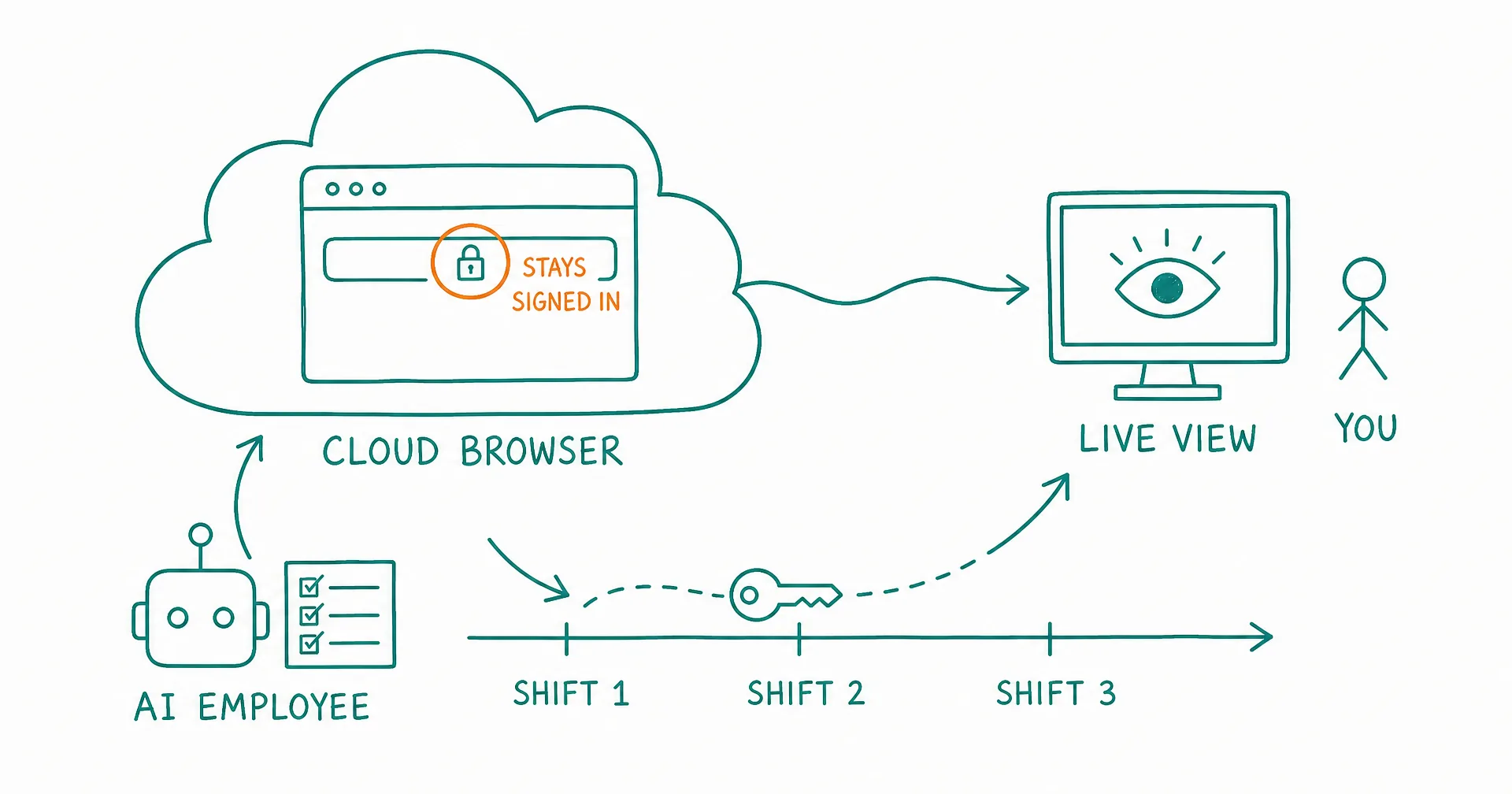
Your AI employees now have browsers of their own. Cloud Browsers is live for every CellCog account: each AI employee can open a real Chrome that runs on our servers, keeps its logins and tabs between shifts, and works even when your computer is off.
Until now, an agent that needed the web either browsed logged out or borrowed your Chrome through Browse my Chrome, which meant your machine had to be on and your identity did the browsing. That is still exactly right for work on your own accounts. But a standing employee has standing work: the analytics dashboard it checks every morning, the vendor portal it files into, the docs site it reads. Those deserve a browser that belongs to the employee, the same way it already has its own inbox and task board. That is what shipped.
On this page · 6 sectionsOpen
- Cloud Browsers shipped August 31, 2026: every CellCog AI employee can now use a real Chrome of its own, running on CellCog’s servers.
- It is actual Chrome, not a reconstruction: the live view shows the employee’s real browser window, and you can click and type in it yourself.
- Logins and tabs carry across shifts: sign an employee into a tool once and that session is there for future work, even when your computer is off.
- One-click login handoff: when an employee hits a login wall, it sends you a link that opens that exact login page on its browser. You sign in, the employee continues. Credentials never pass through chat.
- Agents drive their own browser with the same commands they already use for Browse my Chrome, so everything an agent learned there applies unchanged.
- Own browser by default, shared by choice: each employee gets its own profile with its own logins, and two employees can even hold different accounts on the same site. Pooling a team onto one shared profile is a deliberate choice you make, not the starting point.
- Browse my Chrome is unchanged: your own Chrome remains the right tool for anything tied to your personal accounts and your machine.
§ 01A real Chrome, not a remote control
The live view on the Cloud Browsers page streams the employee’s actual browser window: real Chrome UI, real tabs, real address bar. Nothing is reconstructed or approximated. You can take the controls at any moment, click around, open a tab, sign into a site, and hand it back. Whatever state you leave is the state the employee works with.
This matters more than it sounds. When you can see exactly what the agent sees, there is no gap between “what the agent reported” and “what actually happened on the page”. Debugging a stuck flow becomes watching it happen.
§ 02Log in once, it stays
Logins are the whole point of a persistent browser, so they got the most engineering attention.
When an employee runs into a login wall on a site it expected to be signed into, it does not fail and it does not ask you to paste credentials into chat. It sends you a link. One click opens that exact login page on the employee’s own browser, you sign in the normal way, and the employee continues with the authenticated session. Passwords never transit the conversation.
Once a session exists, it stays with the browser: across shifts, across service restarts, across clean closes and reopens. While the browser runs, its session state is checkpointed continuously, so even a hard crash costs at most the last few minutes of new logins. We tested this the direct way before writing this post: a phone-number login made through the live view, the browser fully closed and reopened underneath it, and the session came back signed in with every tab intact.
§ 03Built for standing work
Because the browser runs on our servers, it has no dependency on your machine. Your laptop can be closed, your desktop asleep; the employee’s 6am research shift browses anyway. Combined with shift memory, this closes a loop: an employee that learned a workflow on Monday still has the tabs and the logins to run it on Tuesday.
Agents drive their own browser with the same commands they already use for Browse my Chrome. Same navigation, same page reading, same form filling. Everything an agent learned driving your Chrome transfers unchanged to driving its own.
§ 04Two browsers, two jobs
Browse my Chrome is unchanged, and the two are deliberately complementary:
- Browse my Chrome: agents work in your real Chrome, on your machine, with your sessions. The right tool when the task is about your accounts, your open tabs, your local dev server.
- Cloud Browsers: the employee’s own standing browser and identity, always available. The right tool for the employee’s recurring work, research, and role-specific logins.
Profiles can also be shared, deliberately: assign one browser to several employees and a whole team works out of a single set of logins, like a shared workstation that never gets unplugged. Sharers browse one at a time, and the default stays one browser per employee.
§ 05Separate identities, shared only by choice
The default is the interesting part, so here is the honest contrast. Grok Bot runs every Bot on one shared cloud computer: their own FAQ says Bots “share its files, browser sessions, and logins”, and advises plainly, “Do not use separate Bots as a security boundary” (docs.x.ai FAQ, checked August 31, 2026). Credit where due: that is a candid line to publish, and a shared pool is a coherent design when Bots are interchangeable workers on one person’s tasks.
CellCog starts from the opposite default because employees are not interchangeable. Each one holds a role, and roles come with their own accounts: your support employee signs into the helpdesk as support, your ops employee signs into the same tools as ops. Separate browser profiles mean separate logins, separate tabs, separate cookie stores, and two employees can hold different accounts on the same site. Pooling is available when you want it, per profile, on your call.
We will be equally candid about what this is: practical identity separation, not a hardened security boundary. But practical identity separation is what a business actually runs on. Knowing which employee is signed in as whom, and being able to log one of them out of one site without touching the rest, is the difference between a workforce and a pool.
§ 06The honest caveats
A browser is an identity. Treat an employee’s browser logins with the same care you give any credential: you decide what it signs into, and approvals still gate anything consequential the employee does on a logged-in site. A hard crash can lose the last few minutes of brand-new logins, though everything checkpointed before it survives. And a browser of their own does not exempt employees from fair play: sites’ rules about automation apply exactly as before, and CellCog employees are built to respect them.
Q1Do AI employees stay logged in between shifts?
Yes. A Cloud Browser keeps its logins and open tabs across shifts, service restarts, and clean closes. Sessions are checkpointed continuously while the browser runs, so even a hard crash costs at most the last few minutes of new logins.
Q2What happens when a site asks the employee to log in?
The employee detects the login wall and sends you a one-click link that opens that exact login page on its own browser. You sign in like you would anywhere, and the employee picks the task back up with the authenticated session. No credentials in chat, ever.
Q3Can I watch and control the employee's browser?
Yes. The live view streams the actual Chrome window. You can click, type, open tabs, and log into sites yourself; the employee sees whatever state you leave behind.
Q4How is this different from Browse my Chrome?
Browse my Chrome connects agents to your real Chrome on your machine: your sessions, your identity, great for work on your own accounts. Cloud Browsers gives the employee a standing browser of its own that works while your laptop is closed. Same commands on both.
Q5Can multiple employees share one browser?
Yes, when you choose to. A browser profile can be assigned to several employees, so a team shares one set of logins, like a shared workstation. Each employee sees the same tabs and sessions, and sharers browse one at a time: if one employee is mid-session, the next waits its turn. The default is the opposite: every employee gets a browser of its own.
Q6Does this let employees get around website rules?
No. CellCog employees follow the same fair-play rules everywhere: no fake engagement, no scraping where it is prohibited, no evading rate limits or bans. A browser of their own does not change what they are allowed to do with it.