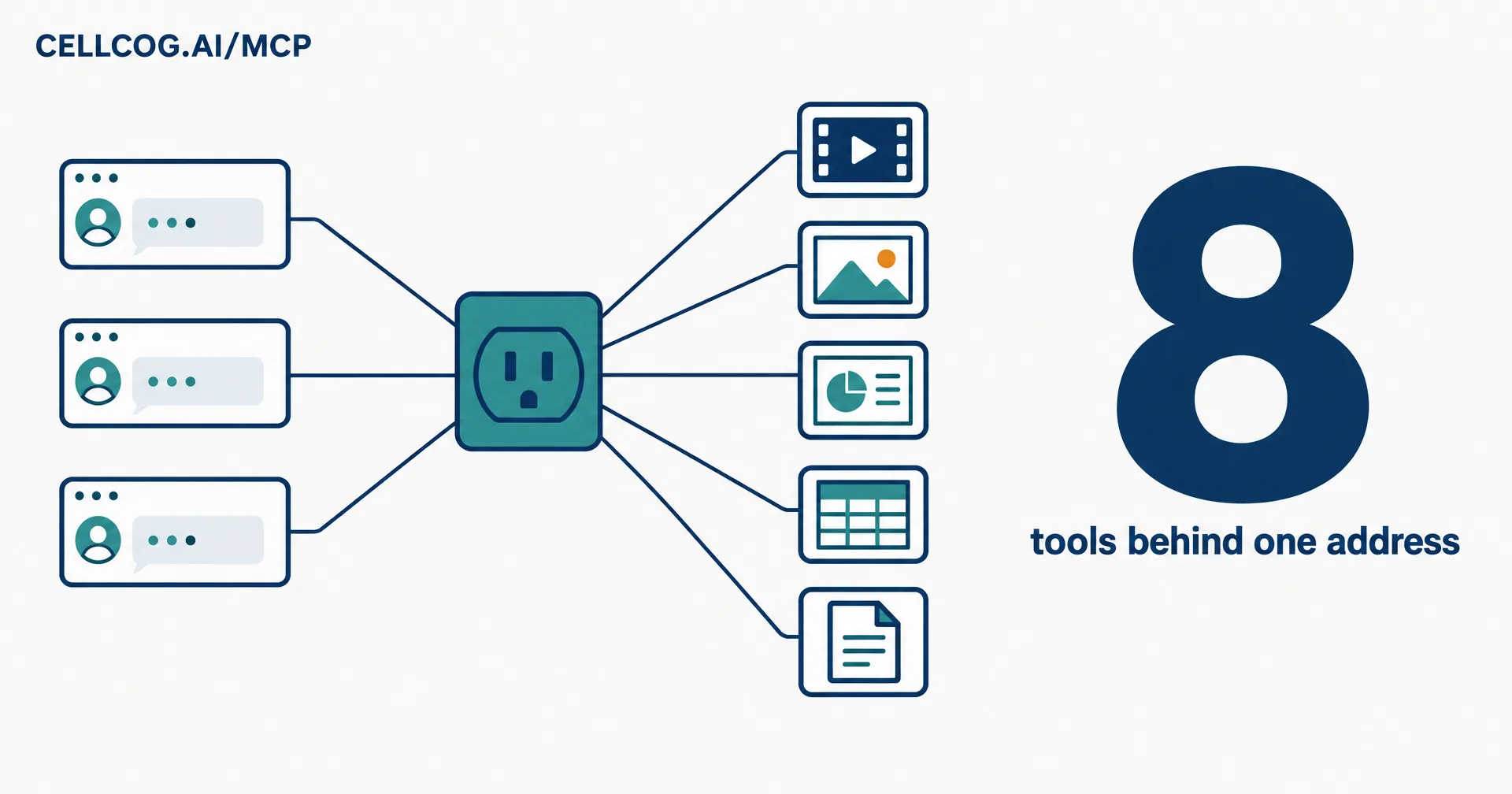
CellCog runs its own MCP server at https://cellcog.ai/mcp. Any assistant that speaks MCP, including Claude web and Desktop, Claude Code, Codex and Cursor, can connect to it, sign you in once with your CellCog account, and from then on hand CellCog a brief and get finished work back. It has been live since September 17, 2026, and we have spent three weeks testing it inside the assistants people already use. This post explains what it does, how to connect, and what it does not do yet.
On this page · 8 sectionsOpen
 CellCog runs a remote MCP server at https://cellcog.ai/mcp, live since September 17, 2026. Claude, Claude Code, Codex, Cursor and other clients that speak MCP can connect to it.
 You sign in once with your own CellCog account on a consent page and click Approve. There is no API key and no shared team token; each person connects as themselves.
 Eight tools let the assistant hand CellCog a brief and get finished work back: research, code, dashboards and apps, PDFs and decks, video, images, audio and spreadsheets. Each brief runs as an agent job, not a single model call.
 The assistant checks back about once a minute and gets progress notes while the job runs, then the files once, each with a Download link valid for 30 days.
 It is billed like a web chat, from your credits or your organization’s shared pool. Not yet: hiring or managing AI employees, or acting on your computer or browser, through the connector.
§ 01The reverse of what shipped in August
On August 31 we shipped the other direction: connect your own MCP servers to CellCog so your agents can call your tools. This update turns CellCog itself into a server. Your assistant stays where you work, and CellCog becomes the place it sends the jobs that need an agent: research, code, dashboards and apps, PDFs and decks, video, images, audio and spreadsheets.
What comes back is the result of an agent job, not a single model call. A brief for a launch video comes back as the script, the clips and a check of the result together.
§ 02Connect in one step
| Assistant | What to do |
|---|---|
| Claude web or Desktop | Settings, Connectors, Add custom connector, paste the address, Approve, then start a new chat |
| Claude Code | claude mcp add --transport http cellcog https://cellcog.ai/mcp |
| Codex | codex mcp add cellcog --url https://cellcog.ai/mcp, then codex mcp login cellcog |
| Cursor | The one-click install button in CellCog’s MCP / API app, or add the address as a remote server |
| Any other MCP client | Add https://cellcog.ai/mcp as a remote (streamable HTTP) server |
The first use opens CellCog’s consent page, which names your assistant (“Claude wants to use your CellCog account”) and lists three permissions in plain words. The assistant can create chats and send messages in your account, read chat status and results, and open files the agent produced, with links valid for 30 days. You click Approve once. There is no API key to copy and no shared team token; every person signs in as themselves.
Inside CellCog, the MCP / API item in the left sidebar holds the address, the setup for each assistant and the apps you have connected. New accounts also see CellCog MCP as a choice on their first screen.
§ 03What an assistant can do with it
Eight tools sit behind the address:
- Create chat: starts a CellCog chat from a brief, with the agent and depth you choose.
- Send message: a follow-up in the same chat, in context.
- Upload files: an upload window for files on your computer, up to 10 files of 25 MB each, kept 24 hours.
- Get status and Get result: check on a job and collect what it made.
- Stop chat: stops a running job.
- List chats and Account: recent chats and the account the assistant is signed in as.
§ 04How a job comes back
Agent jobs take time, so the connector reports progress instead of making the assistant wait. While a job runs, Get result returns the agent’s progress notes since the last check and suggests calling again in about a minute; video jobs take 10 to 40 minutes. When the job finishes, Get result returns the final message, the files and the credits used once, with a one-line summary such as “Finished: 3 files”.
Every file carries a Download link valid for 30 days. Clients that render inline views show players, images, PDF page previews and spreadsheet formula tables in the conversation; others show the links.
§ 05Three weeks of testing
§ 06How other MCP servers compare
Several products now run their own MCP server. What a call does is where they differ.
| Address | Sign-in | What a call does | Billing note | |
|---|---|---|---|---|
| CellCog | cellcog.ai/mcp | OAuth, your CellCog account | Starts an agent job from a brief | Same as a web chat |
| Higgsfield | mcp.higgsfield.ai/mcp | OAuth, no API key | Generates images, video, characters and audio | MCP always uses credits |
| Relevance AI | mcp.relevanceai.com | OAuth | Triggers your Relevance agents; long runs start async and are polled | Its MCP page does not say |
| Zapier | mcp.zapier.com/api/v1/connect | OAuth, or a connection token | Runs the app actions you configured | Its connections page does not say |
Higgsfield’s page is direct about credits: “everything generated through MCP deducts credits, regardless of your plan.” Relevance AI describes the same pattern we use for long work: “The trigger returns immediately with a conversation ID, which you then poll to check status and retrieve results.” Zapier’s strength is reach into your apps: “Zapier holds the app credentials, so your MCP client never handles a third-party API key.”
§ 07The honest caveats
- A connected assistant cannot hire or manage AI employees, change your connectors, or act on your computer or browser.
- Some sandboxes, such as Claude Cowork on Team plans, cannot download the files themselves until an admin allows
cellcog.aiandstorage.googleapis.com. You can always open the links yourself. - Clients that only support local (stdio) servers cannot connect; they use the CellCog plugin or the SDK.
- CellCog is a custom connector in Claude, added by address. It is not listed in Anthropic’s connector directory.
§ 08Sources
- CellCog, MCP Connector Guide, read October 7, 2026.
- Higgsfield, What is Higgsfield MCP, read October 7, 2026.
- Relevance AI, MCP server, read October 7, 2026.
- Zapier, How Zapier MCP connections work, read October 7, 2026.
Q1How do I add CellCog to Claude?
In Claude web or Desktop, open Settings, then Connectors, choose Add custom connector, paste https://cellcog.ai/mcp, click Approve on CellCog’s consent page, then start a new chat. In Claude Code, run claude mcp add –transport http cellcog https://cellcog.ai/mcp.
Q2How do I add CellCog to Codex or Cursor?
In Codex, run codex mcp add cellcog –url https://cellcog.ai/mcp, then codex mcp login cellcog. In Cursor, use the one-click install button in the MCP / API app in CellCog’s left sidebar, or add the address as a remote server.
Q3What can an assistant do through the connector?
Create a chat from a brief, send follow-ups, upload files from your computer, check status, collect results, stop a running chat, list recent chats and read the account. Each brief runs as a CellCog agent job and returns files with Download links.
Q4How long do the file links last?
30 days. Every file comes with a Download link, and clients that render inline views show players, images and page previews in the chat.
Q5Is this the same as connecting my own MCP servers to CellCog?
No, it is the reverse. Since August 31 you can plug your own MCP servers into CellCog. This update is CellCog acting as an MCP server that other assistants connect to.